


Now Reading: How to Connect a GoDaddy Domain to Hostinger Hosting
-
01
How to Connect a GoDaddy Domain to Hostinger Hosting


Tired of your domain and host not talking to each other? If your GoDaddy domain is pointing the wrong way, your site can feel slow to load, hard to manage, or stuck in setup limbo.
The fix is straightforward, and Hostinger makes it easy to pair a domain with fast, affordable web hosting, whether you’re launching a simple site, hosting for WordPress, or moving to VPS hosting. With the right setup, you can connect the nameservers, verify the change, and get your site live with a free SSL certificate and a cleaner launch process, plus tools like the AI Website Builder if you need help building fast.
Why Pair Your GoDaddy Domain with Hostinger Web Hosting?
Pairing your GoDaddy domain with Hostinger hosting gives you more than a place to park a website. You get stronger speed, cleaner growth options, and a smoother setup for the long run. That matters because your domain is only as useful as the server behind it.
When your hosting is built for performance, your pages load faster, your visitors stay longer, and search engines get a better signal. That combination helps whether you are running a blog, a store, or a client site that needs steady uptime.
Enjoy Blazing Speeds and Uptime Guarantees
Hostinger uses modern server tech, global data centers, and LiteSpeed web servers to keep response times low. That matters when you want your site to open in seconds, not after a long wait that sends visitors elsewhere. Faster pages also support better SEO because search engines favor sites that perform well on mobile and desktop.

The benefit goes beyond speed. With data centers placed in different regions, you can keep content closer to your audience and reduce delay. That is a real advantage if your traffic comes from more than one country.
A strong uptime setup also helps your site feel dependable. If your pages stay live and load quickly, users trust your brand more, and that trust often turns into more clicks, more sales, and more repeat visits. In short, pairing your GoDaddy domain with Hostinger gives your site the kind of backbone that helps it perform from day one.
Unlock Scalable Options Like VPS and Cloud Hosting
A domain should grow with your business, not hold it back. Hostinger gives you room to start small and move into VPS hosting or cloud plans when traffic picks up, which is useful if you expect more visitors, more files, or more demanding apps.
That flexibility matters for growing brands, online stores, and hosting for agencies. If you manage several client sites, you need more than basic space. You need resources you can control, upgrade paths you can trust, and server power that does not collapse when one site gets busy.
Hostinger also offers advanced VPS options like Paperclip VPS and OpenClaw for users who want more control and more room for complex setups. Those plans fit projects such as a busy store, a custom app, or Self-hosted n8n workflows that need stable resources and predictable performance.
For teams that plan ahead, cloud hosting adds another layer of flexibility. It gives you stronger capacity without forcing a full migration later, so your domain can stay in place while your infrastructure grows with your workload.
If your site might outgrow shared hosting, start with a platform that already has a clear upgrade path.
Bonus Perks: Free Tools and Easy Management
Hostinger also gives you useful extras that make domain and hosting management easier. Depending on the plan, you may get a free domain for the first year, which helps lower startup costs when you are launching a new site.
You also get practical tools that save time during setup and planning. A WHOIS Lookup helps you check domain details, while a Domain Name Generator can help you test ideas before you buy. If you are still shaping your brand, those tools make the process faster and less guessy.
Email setup matters too. An AI Email Generator helps you create polished business email ideas without overthinking the wording, and that fits neatly into a broader hosting ecosystem that includes Business email, website tools, and launch support. If you want a stronger online presence, that kind of bundle makes life easier.
For many users, this is the real value of pairing a GoDaddy domain with Hostinger. You are not just connecting DNS records. You are plugging into a setup that supports your site, your email, and your future growth in one place.
Your Pre-Setup Checklist for Smooth Domain Connection
A clean domain connection starts before you touch DNS. If your Hostinger account is set up correctly and your GoDaddy domain is ready, the rest of the process feels far less messy. That means fewer surprises, fewer delays, and a much better chance of getting your site live on the first pass.

Confirm Your Hostinger Account and Plan Details
Start by logging in to your Hostinger account and checking the plan you actually bought. Look for whether you have Web hosting, Hosting for WordPress, or another plan, because the setup steps can vary a little by package.
Inside the dashboard, confirm the resources tied to your plan, such as storage, bandwidth, and the number of websites allowed. If you expect to run one site, a basic plan may be enough. If you plan to host a WordPress site, run a store, or test multiple projects, make sure the plan gives you room to grow.
It also helps to confirm whether your site is already added to the account. If not, add it now so the domain has a home once DNS starts pointing over. That way, your free SSL certificate, email setup, and website files can connect cleanly after propagation.
A good setup check now saves you from chasing small errors later, especially when DNS records take time to update.
If you want to compare options before moving forward, the Hostinger vs GoDaddy comparison can help you match the right hosting plan to your project.
Double-Check GoDaddy Domain Status
Next, log in to GoDaddy and verify that you still own the domain. Check the registration details, renewal date, and domain status before you change anything. If the domain is close to expiration, renew it first so the connection does not break during setup.
Make sure the domain is not locked in a way that blocks updates. Most domains are fine to point to new hosting, but some settings can slow things down if they were changed recently. This matters for common domain extensions like .com, .net, .org, and country-specific extensions such as .co.uk or .ca, since renewal rules and transfer limits can differ.
If you are unsure about the current status, a quick WHOIS Lookup gives you a clearer picture of ownership and expiration details. You should also confirm that no pending domain transfer is underway, because that can pause DNS changes and create avoidable delays.
When the domain is active, unlocked, and in your name, you are ready for the connection step with much less friction.
Add and Configure Your Domain in Hostinger hPanel
Once your domain and hosting are ready, the next step is to connect them inside hPanel. This is where the setup starts to feel real, because your domain stops being just a name and becomes part of your hosting account. A few careful clicks now save you from DNS mistakes later.
Access hPanel and Locate the Domains Area
After you log in to Hostinger, land on the main dashboard and look for the Domains section. If you have more than one service, hPanel can feel crowded at first, so take a second to scan the left menu and find the account area tied to your site.
From there, open the domain management tools and check whether your GoDaddy domain already appears in the list. If it does, that’s a good sign. If it does not, you’ll usually need to add it as an external domain before you can attach it to hosting.
A quick checkpoint helps here:
- Make sure you are inside the correct Hostinger account.
- Confirm the hosting plan linked to the website you want to launch.
- Open the domain area, not the website editor or billing panel.
- Look for options tied to external domains, nameservers, or DNS.

If the domain list looks empty, don’t panic. You may only need to add the domain first, then point it to your Hostinger plan.
This step is simple, but it matters. Once you know where the domain tools live, the rest of the setup moves much faster.
Input Your GoDaddy Domain and Attach to Hosting
Now enter your GoDaddy domain exactly as it appears in your registrar account. Type the root domain, such as yourdomain.com, and avoid adding http://, https://, or extra characters. A small typo here can send you in the wrong direction, so copy the domain carefully.
Next, choose the hosting plan you want the domain attached to. This matters if you manage more than one site, because the domain needs a home inside the right Web hosting or Hosting for WordPress plan. If your project is built for growth, this is also the point where you can line it up with Cloud hosting, VPS hosting, or other plans later on.

After you select the plan, Hostinger may ask you to confirm the connection. This step binds the domain to your account so DNS can start pointing to the right server. If the domain still sits at GoDaddy, the site will not switch instantly. That’s normal, because DNS changes need time to spread across the network.
Propagation can take up to 24 hours. In many cases, it moves faster, but you should plan for a delay before the domain fully resolves.
If you are setting up a business site, a Personal domain name, or even a Premium domain, keep the exact spelling consistent across all records. The same rule applies to Domain extensions like .com, .net, .org, and country-based versions. A clean entry now makes the switch smoother later.
Retrieve Your Unique Hostinger Nameservers
Once the domain is attached, go to your hosting plan details and find the nameservers assigned to your account. Hostinger usually provides values like ns1.hostinger.com and ns2.hostinger.com, and these must be copied exactly as shown. One wrong character can break the connection, so accuracy matters more than speed.
Inside hPanel, the nameservers are usually listed in the plan or domain management area. If you bought Web hosting, Hosting for WordPress, or VPS hosting, look in the plan details section first. If your domain is already linked, the nameserver fields should be visible there, ready to copy into GoDaddy.
For quick reference, the process usually looks like this:
- Open your Hostinger account and choose the correct hosting plan.
- Find the nameservers section in plan details or domain settings.
- Copy the values exactly, without adding spaces or edits.
- Save them in a safe place before moving to GoDaddy.
- Paste them into your domain registrar when you update DNS.

These nameservers act like the signposts for your domain. Once GoDaddy points to them, traffic starts heading to Hostinger instead of the old destination. After that, you can move on to the DNS update with a lot more confidence.
If you plan to manage email too, keep those records organized as well. A smooth domain setup now makes later tasks like Business email, Google Workspace, and Free SSL certificate activation far easier.
Update Nameservers in GoDaddy for Full Control
Once your domain is added in Hostinger, the real handoff happens at GoDaddy. Updating the nameservers tells the internet where your domain should look for hosting, email, and other DNS records. That change gives you full control through Hostinger, so you can manage the site in one place instead of splitting settings between platforms.

Navigate to GoDaddy DNS Settings
Log in to your GoDaddy account first, then open My Products. Find the domain you want to connect, and open its DNS or domain settings page. That area is where you can change the nameservers, edit DNS records, and check whether the domain is still pointing somewhere else.
If your account has several domains, slow down and pick the right one. A small mistake here can send the wrong site to the wrong server, and that creates confusion fast. In the DNS zone file, you will see the current nameserver setup and related records tied to the domain.
Take a moment to confirm the domain matches the one you added in Hostinger. This is also a good time to check whether the domain is locked or under any change restriction. Once you know you are in the correct DNS panel, you are ready to replace the old nameservers with Hostinger’s.
Delete Old Nameservers and Add Hostinger’s
On the nameserver page, remove the old entries before adding the new ones. GoDaddy usually shows a default set already in place, and those need to be replaced if you want Hostinger to handle DNS. Choose the option to enter custom or own nameservers, then paste the values provided in your Hostinger plan.
Use the nameservers exactly as shown in your account, for example ns1.hostinger.com and ns2.hostinger.com if those are the ones assigned to you. Do not add spaces, extra punctuation, or extra lines. Nameservers behave like address labels, so one typo can send traffic in the wrong direction.
Before you save, verify the format one last time:
- Each nameserver should be on its own line.
- The spelling should match Hostinger’s version exactly.
- There should be no blank fields left behind.
- The domain should still be selected in GoDaddy, not another product.

If your domain also handles Business email or Google Workspace, keep those records in mind for the next steps. The nameserver update hands DNS control to Hostinger, so future record changes become much easier to manage in one dashboard.
Save Changes and Initial Confirmation
After you save the new nameservers, GoDaddy should show a confirmation message right away. That message only means the change was accepted, not that it has fully spread across the web. DNS updates take time, so the site may still resolve to the old server for a while.
You will usually get an email from GoDaddy confirming the nameserver update. Keep that message, because it gives you a timestamp if you need to check the change later. Hostinger may also show the domain as connected or pending, depending on where the propagation process stands.
During the first stage, expect a mixed result. Some visitors may see the new Hostinger-hosted site, while others still land on the old setup. That is normal, because different DNS caches update at different speeds. In most cases, the switch settles within a few hours, although it can take longer.
If the domain does not point to Hostinger right away, do not change the nameservers again. Wait for propagation to finish first.
Now is a good time to confirm the domain inside Hostinger’s tools, check the SSL status, and prepare for the final connection steps. If you plan to add a Free SSL certificate, launch a Website Builder, or move content later with Migrate to Hostinger, the nameserver update is the foundation that makes those actions work cleanly.
Wait, Verify, and Troubleshoot DNS Propagation
After you change nameservers, DNS does not flip everywhere at once. Some locations update fast, while others keep older records for a while, so your site can look inconsistent during the first few hours. The safest move is to wait, check the change from a few angles, and fix only the issues that are actually blocking the update.

Track Propagation with Free Online Tools
A DNS checker gives you a quick view of how the change is spreading. Tools like DNSChecker, WhatsMyDNS, and similar lookup services show results from multiple regions, which helps you see whether the new Hostinger nameservers or IP address are taking hold worldwide.
Use the tool, enter your domain, then check the record type you changed, usually NS, A, or CNAME. If most locations show the new data, propagation is moving in the right direction. If some regions still show the old record, that is normal early on.
A simple routine works best:
- Check your domain from a global DNS tool.
- Compare at least two record types if you changed more than one setting.
- Refresh after a few hours instead of every few minutes.
- Watch for a full switch in several regions before you make more edits.
How to correctly check nameservers is also useful if you want a second way to confirm the current DNS state. That extra check helps you separate a true delay from a bad record.
If only one location looks wrong, wait. If every location looks wrong, review the records again.
Test Your Live Site and SSL Setup
Once the domain starts resolving, open the site in a browser and test it directly. Try a private window, a different browser, and even a mobile connection if possible. That helps you see what new visitors see, not just what your own cache remembers.
Then check the HTTPS version of the site. A working Free SSL certificate should load without warnings, and the padlock in the address bar should appear normally. If the browser shows a security warning or redirects strangely, the SSL may still be installing or the DNS record may not be fully settled.
Hostinger tools can help here too. In hPanel, check the domain status, SSL state, and website connection for the hosting plan. If you are using Web hosting, Hosting for WordPress, or Cloud hosting, the dashboard should show whether the domain is connected and protected. For bigger builds, such as Hosting for WooCommerce or Hosting for agencies, this step matters even more because one bad redirect can affect sales or client trust.
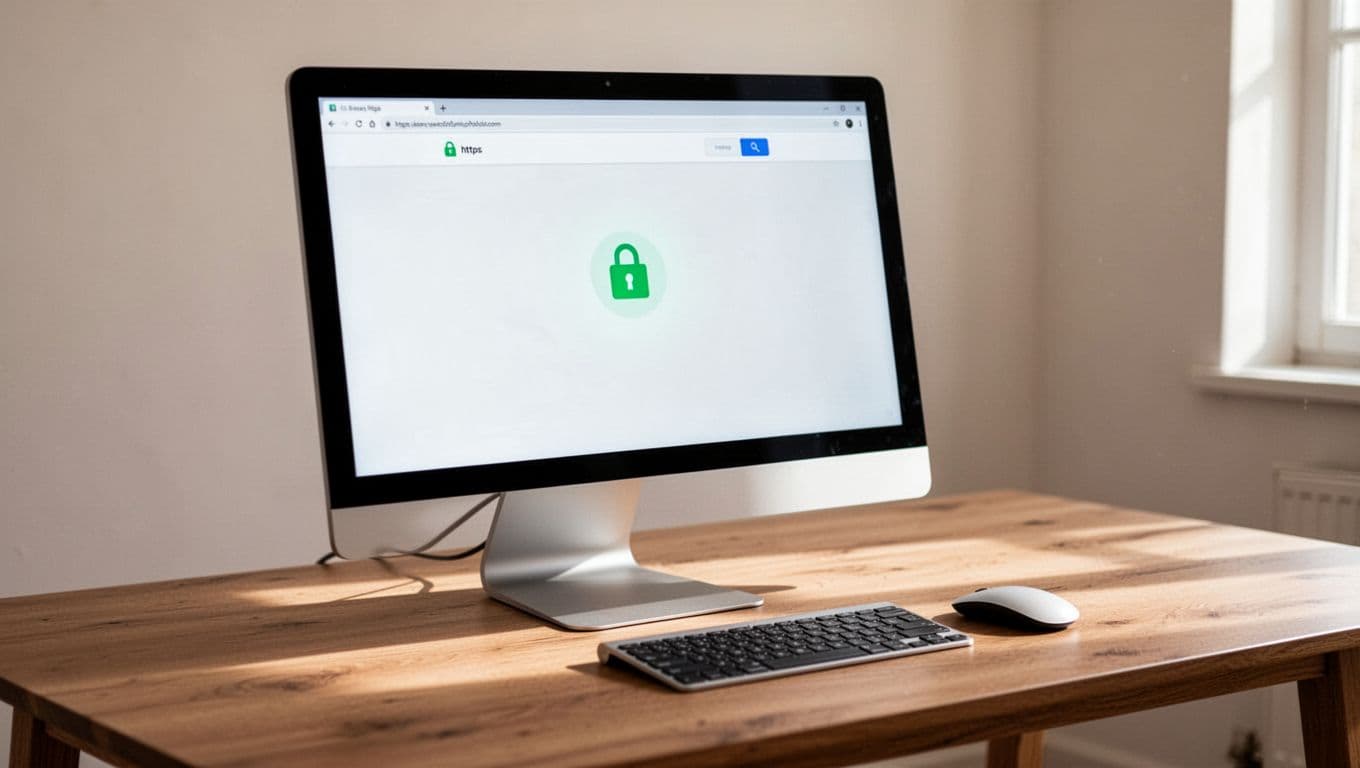
If the site loads over HTTPS and your homepage looks right, you are close. At that point, you can move on to email, subdomains, or any extra DNS records tied to Business email or Google Workspace.
Quick Fixes for Propagation Delays
When propagation feels stuck, start with your own device before you touch the domain again. A stale local cache can keep showing old data even after DNS has updated elsewhere, so flushing DNS often clears up the confusion fast.
On Windows, use ipconfig /flushdns. On macOS or Linux, run the matching cache reset command for your system. After that, close and reopen the browser, then test the domain again. If the new site appears, the problem was local rather than global.
If the issue continues, check the basics again:
- Confirm the nameservers at GoDaddy match the Hostinger values exactly.
- Make sure the domain is not still pointing to an old host.
- Check whether DNSSEC is enabled and blocking the new records.
- Review the zone records if you use custom A, MX, or CNAME entries.
If none of that helps, contact support with the exact domain, the time you changed the nameservers, and a screenshot of the DNS checker results. That gives support a clear starting point and cuts down the back-and-forth. You can also review how to fix DNS issues at Hostinger if you need a more detailed path through the common errors.

If the site still does not resolve after a full wait period, the issue is usually a record mismatch, a cached result, or a setup conflict in the DNS zone. Fix that first, then test again before making any more changes.
Maximize Your New Hostinger-Powered Website
Your domain is connected now, so the next step is simple: turn that setup into a live, useful website. Hostinger gives you several ways to do that, whether you want a quick launch, a polished business presence, or room to grow later.
A smart setup starts with the basics. Get the site live, add trust signals like email and SSL, then choose a plan that matches your next stage. That order keeps the process clean and helps you avoid rebuilding things twice.
Launch a Site Fast with AI Website Builder

If you want to move quickly, the AI Website Builder is the easiest way to get started. It can help you create a clean site layout, choose a look that fits your brand, and publish without spending hours on setup. That matters when you want your new Hostinger-powered website to look real, not half-finished.
This is a strong fit for a small business site, a portfolio, or a Personal domain name project. It also works well if you want to test ideas before committing to a bigger build. Instead of getting stuck on design choices, you can start with a template, refine the text, and focus on what your visitors need.
Hostinger also gives you other useful Tools, like a Domain Name Generator if you are still naming a project, or an AI Logo Generator if your branding is not ready yet. If your plan is more advanced, Hostinger Horizons and the broader Website Builder options give you more room to shape the site your way.
For a fast launch, keep the first version simple:
- Pick a layout that matches your goal.
- Add your main pages, such as Home, About, and Contact.
- Write short, direct copy.
- Publish once the structure is clear.
If you are building an online store, check whether an Ecommerce Website Builder or Hosting for WooCommerce plan fits better. The right start saves time later.
Add Professional Touches Like Email and SSL
A live site feels much more credible when your contact details match your domain. Set up Business email early, so visitors see a real address instead of a generic inbox. That small detail helps your brand look stable and trustworthy.
Hostinger makes this easier because email and hosting can sit in the same account. If you need ideas for the right setup, the business email hosting options can help you compare choices before you commit. You can also use an AI Email Generator to create cleaner address ideas for sales, support, or general inquiries.
At the same time, activate your Free SSL certificate if it has not already been set up. SSL protects visitor data and gives your site the padlock users expect in the browser bar. That matters for forms, logins, and any page where people share details.
For many sites, this is the difference between a placeholder and a real online presence. A custom email, a secure connection, and a proper domain setup make your site feel ready for business.
Scale Up with WooCommerce or VPS Plans
If your site starts getting traction, plan for the next step early. A blog, service site, or Link in Bio page may run fine on a simple plan, but online stores and high-traffic sites need more power.
For ecommerce, Hosting for WooCommerce gives you a better path. It supports product pages, checkout flow, and the kind of traffic that comes with real sales. If you are selling products like Print on Demand items, a stronger store setup helps your site stay steady when orders pick up.
For bigger projects, VPS hosting and Cloud hosting give you more control and more resources. That matters for developers, agencies, and technical builds like Self-hosted n8n or custom app workflows. If you need even more specialized performance, plans such as Paperclip VPS, OpenClaw, or Hermes Agent VPS give you room to scale with less friction.
When a site grows, the hosting plan should grow with it. Start with the build that gets you live, then move up when traffic, storage, or workflow demands increase.
Conclusion
Connecting a GoDaddy domain to Hostinger comes down to a few clear steps, adding the domain in hPanel, updating the nameservers in GoDaddy, then waiting for DNS propagation to finish. Once that change settles, your domain points to the right server, your site can go live, and Hostinger can handle the hosting side with less friction.
If anything slows the process, the fix is usually simple, check the nameservers again, confirm the DNS settings, and give propagation enough time to complete. For a deeper walkthrough, the guides on pointing a domain to Hostinger and managing GoDaddy DNS settings can help you double-check each step.
- Add the GoDaddy domain inside Hostinger before you touch DNS.
- Replace the old GoDaddy nameservers with Hostinger’s exact values.
- Wait for propagation, then test the site on desktop and mobile.
- Turn on SSL, email, and other basics once the connection is live.
- If you get stuck, Hostinger support can help you fix the setup faster.
Build the site now, explore domain name search or premium domains, and move forward with confidence. Your online presence is set.
Related Posts


Stay Informed With the Latest & Most Important News
Previous Post
Next Post


Advertisement

-
 01Top Tips to Stay Motivated and Avoid Burnout While Working Remotely
 -
 02How to Pose People Who Are Not Models for Natural and Authentic Portraits
 -
 03Foods Recommended by Doctors to Boost Your Immune System Naturally
 -
 04New Study Reveals Simple Lifestyle Changes Linked to Longer Life
 -
 05Spectacular Photos of Nature from the World’s Most Scenic Spots
 -
 06Daily Exercises to Improve Posture and Support Spine Health
 -
 07Stunning Photos Capture Nature’s Beauty from Around the World